Preconfig > Canvas
Set:
- pixel space
- outputs settings for each screen (custom rate, position, rotation, AOI, pitch size, blending, etc.).
By default, all output groups are stacked and the screen size is the same as the assigned output group with the highest resolution.
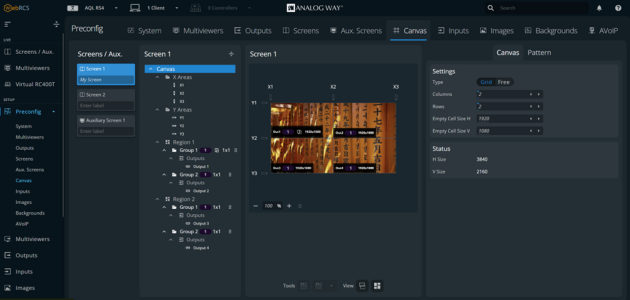
- Canvas settings⚓
Two types of Screen canvas settings:⚓
Grid type
Recommended for standard shows (a single output screen, a screen with identical displays aligned horizontally or vertically, 2x2, etc.). Covering and gap are simplified in Grid with the X and Y areas.
Free type
Default setting.
Recommended for more specific shows that require manual adjustments for each output. Covering is set manually for each output.
Note :
Canvas settings are applied to the selected Screen or Group.
Grid and Free type have their own settings and switching between types does not keep the current configuration.
- Tree view⚓
Select one element to change the corresponding settings in panel (1).
X and Y areas
(Only displayed if the Screen is in Grid type)
Create covering or gap between the grid cells
Set blending and black areas for covering areas
Groups
and DPH104s
Set the position of the output groups (or DPH104) in the Screen canvas
Set the format set a format every output in the group (or DPH104)
Group Pattern, display patterns to identify the outputs
Outputs
Set the position of the output in the output group
Set an AOI for the output
Note :
Outputs are placed in groups. And groups are placed in Screens.
An output group fits in one Screen Grid cell. A 2x2 output group fits in a 1x1 Screen Grid.
Tip :
In Grid mode, click on
 to drag and drop groups and outputs in the cells of the canvas.
 : identifies groups which have rotation enabled. The rotation is set in panel (1).