
Save a Master Memory from current Screens
Master Memory is the default saving mode and can be used alone as it loads settings on all Screens. A Master Memory saves the selected Screens in the current settings.
Using Filters, select which Screens, Aux, Layers and Layer settings to save in the Master Memory.
By default, all Layers and all Layer settings are selected.
A Master Memory is made of multiple Screen Memories. Saving a Master Memory saves one Screen Memory per Screen. These Screen Memories can be accessed in Screen mode.
Note :
When a Master memory is loaded to Preview, only the Screens included in the memory are selected for Transition.
In  Screens / Aux.⚓
Click the
 Memories tab in the right panel.
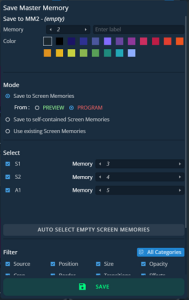
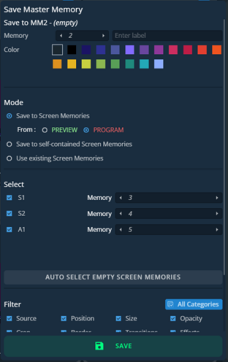
Select Master mode and click Save to open the Save Master Memory window:
Save Master Memory view
Setting
Description / Setting selection
Save to
Select the Master Memory slot to use
Enter a label for the Master Memory
Select a color for the memory slot
Mode
Select to save the current layers settings from Program or Preview Screens with or without creating Screen/Aux Memories (self-contained mode)
Select
Select the Screens and Aux to include/exclude from the Master Memory
Select the Screen Memory slots to use in the corresponding Screens
Click Auto select… to reset the choice usesing the first empty slots
Filter
Select the layer settings to include/exclude from the Master Memory
Select the layer to include/exclude from the Master Memory
Select the settings to save in the Master memory Memory using the table above.
Click Save.
Note :
- Selecting existing Screen Memories and Master Memories slot will overwrite them.
- Changing (and deleting) a Screen Memory also affects a Master Memory using it. If needed, create a duplicate of the Screen Memory before making changes.
Tip :
Use the horizontal scroll bar to display all settings of a Save Memory window.