
Output settings
In  Outputs, click an output to open its settings.⚓
The selected output is highlighted in the interactive rear panel and all output information is listed next to the Output preview.
Example : Options⚓
- Click All to return to the outputs Grid.
- Enter the label to rename the selected output.
- On the interactive rear panel, hover over an output connector to display information about this output.
- On the interactive rear panel, click an output to open its settings.
Tip : Settings panel⚓
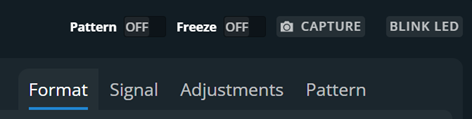
- Toggle Pattern to replace the content with a pattern (see Output pattern).
- Toggle Freeze to pause the content of this output group.
- Click
 to capture the Program output video signal into an image file.
 - Click Blink LED to identify the selected output connector on the physical rear panel of the unit.