
Load a Screen Memory
In  Screens / Aux.⚓
Click the
 Memories tab in the right panel.
Select Screen mode, click Load and click on a memory slot to load click Load.
If needed, enable Auto Scale to adapt the loaded memory to fit the Screen.
Use the
 buttons or Screen transition filter to select the Screen(s).
The Screens selected for Screen Memory loading are also indicated under the
Memories tab: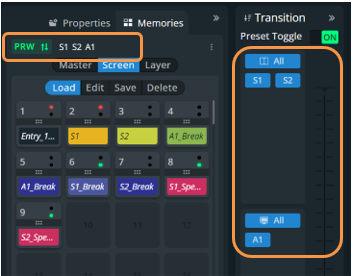
Click a Screen Memory slot.
The Screen Memory is loaded to all Screens selected for transition in Program or Preview.
Tip :
To affect a Screen Memory to only one Screen, it is also possible to drag a memory slot to a Program or Preview Screen.