
Controller description
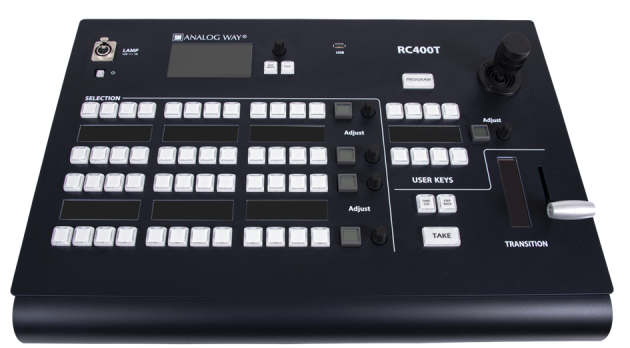
- Top area⚓
This area is used mainly for configuring the RC400T (status, network, upgrade, factory reset, etc.). It is composed of:
a Power button
an LCD display
a rotary encoder
two LED keys (Confirm and Cancel).
Tip :
Use the rotary encoder to move the selection and use the buttons to Confirm / Cancel the choices.
Example : XLR lamp (optional)⚓
The XLR lamp is used to light the RC400T if needed.
To turn the lamp on, go to front panel settings and enable Power on light.
For more information on the XLR lamp for RC400T visit our website https://www.analogway.com.
- Program/Preview key⚓
Press the Program/Preview key to toggle between Program and Preview modes.
- Program mode is enabled when the key is on with a red light.
- Preview mode is enabled when the key is off.
Note :
The Program/Preview key affects the entire Selection area.
- Selection area - Multi-purpose area⚓
The Selection area is used for Screen composition. Select Screens, Aux Screens, Layers, and assign Sources or reload Memories. The Selection area is composed of 4 identical rows of keys. Each row is composed of 12 LED keys with labels in OLED displays, one LCD key and one rotary encoder. Each row can display a predefined group of items depending on the mode selected by the user.
- User keys area and Joystick⚓
The User keys area is composed of 8 LED keys, one OLED display, one LCD key and one rotary encoder. This area has been designed to be evolutive and user customizable. The user keys are predefined slots for features or actions set by the user (lock/unlock a screen, remove a source content, set transition time, disable the T-bar, etc.).
The Joystick is used to adjust the crop, size and position of one layer. It is used together with the user keys.
- Transition area⚓
The Transition area is composed of one T-bar and 3 LED keys: Take Cut, Step Back and TAKE:
Take Cut triggers an immediate transition from Preview to Program without effects or duration.
Step Back reloads the former Program to the Preview.
TAKE triggers the transition from Preview to Program with effects, duration, etc.
The T-bar is a manual Take triggered by the user for a smooth transition.
Note :
The transition applies only to Screens selected in the Selection area.
- RC400T rear panel⚓
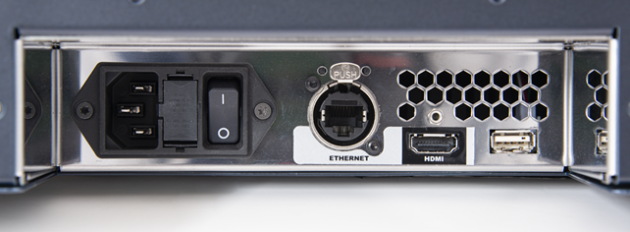
RC400T - rear panel The rear panel is composed of:
- One power plug with a switch button
- One Ethernet plug for network connection
- One HDMI plug
- One USB plug.